



How to add extra IP addresses to your VPS
You can add extra IPv4 addresses and a free routed IPv6 /64 subnet to an active VPS at any time from the client area. The new addresses are assigned automatically, so you don't need to open a ticket.
Pricing: extra IPv4 addresses are billed pro-rata for the rest of your current billing period, then added to your normal renewal. An IPv6 /64 subnet is free.
Step 1: Open your VPS and choose "Add IP Addresses"
Go to Services → My Services and click the VPS you want to add addresses to. Then click Add IP Addresses in the Actions menu on the left.
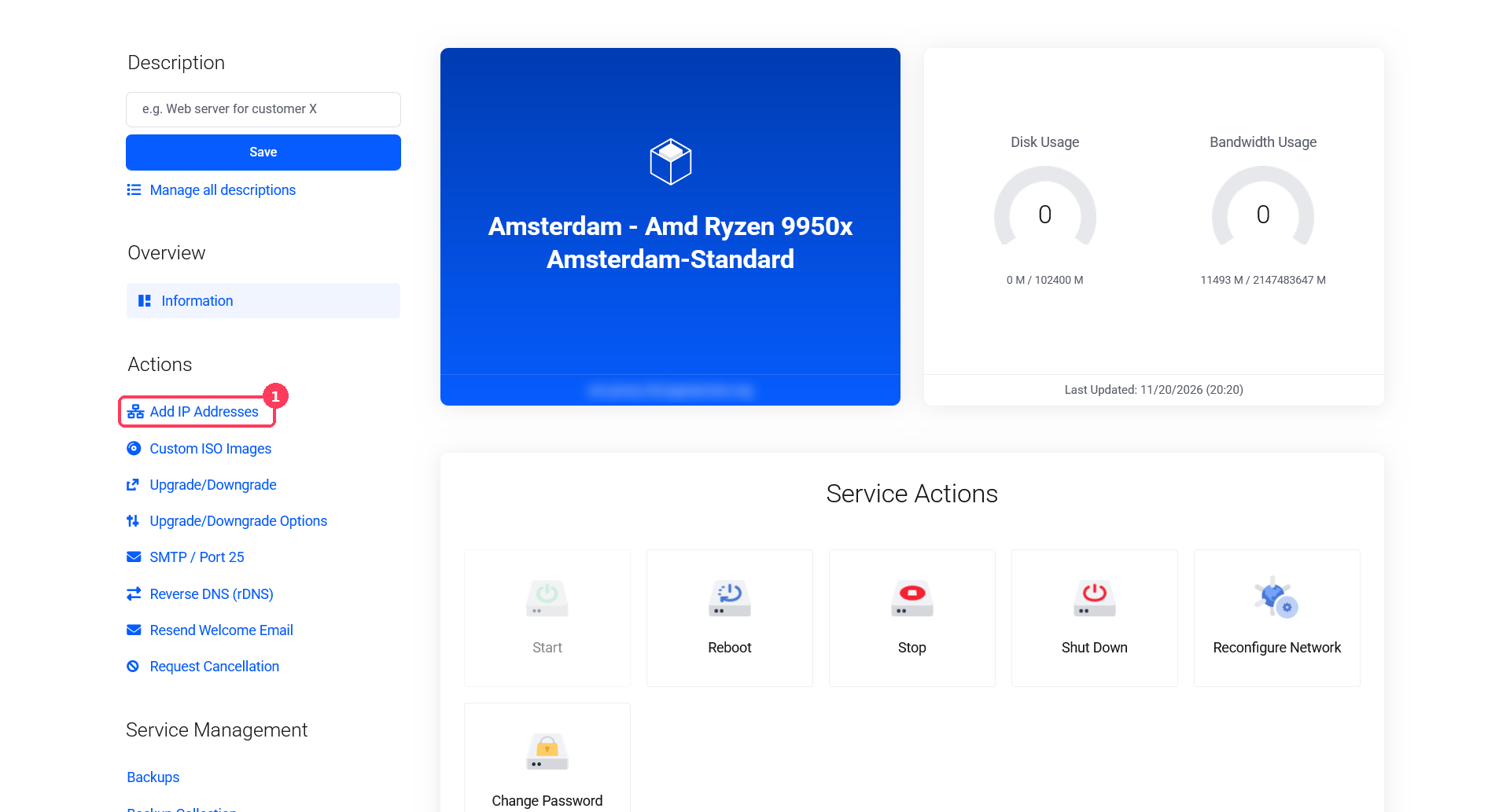
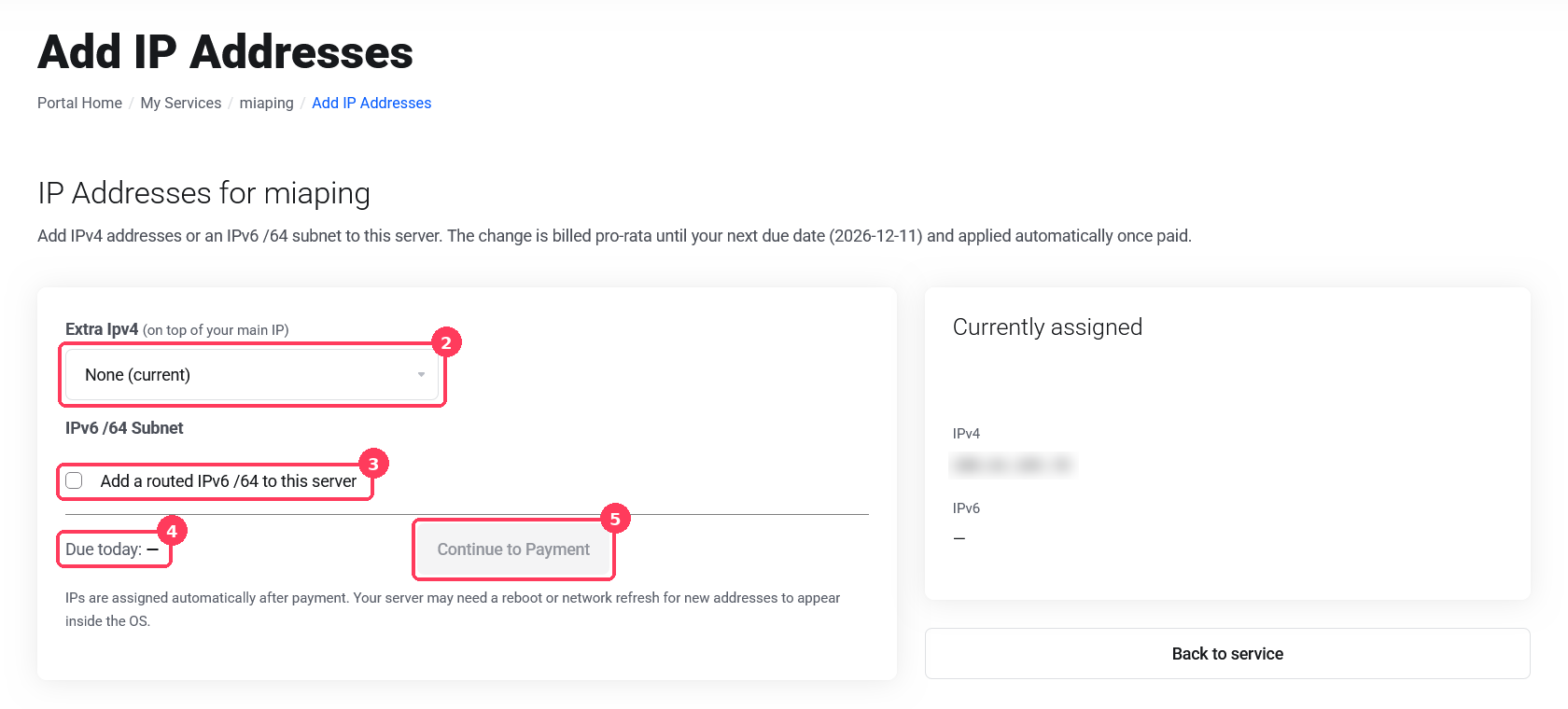
Step 2: Choose your IP addresses
- Extra IPv4: pick how many IPv4 addresses you want in addition to your main IP from the dropdown.
- IPv6 /64 Subnet: tick the box to add a free routed IPv6 /64 to your server.
- Due today: after you make a choice, this shows what you pay now for the rest of your current billing period, and how much your renewal price changes.
- Click Continue to Payment and pay the invoice. The button stays grey until you've chosen something.
Adding only the free IPv6 /64
If you only tick the IPv6 /64 box, Due today shows Free and the button changes to Complete Order. Click it and the subnet is added straight away, with no invoice to pay.
Step 3: Check your new addresses
Once the invoice is paid (or straight away for a free IPv6 /64), the new addresses are assigned to your VPS. To see them, open Add IP Addresses again and look under Currently assigned on the right side of the page.
Step 4: Apply the new addresses to your server
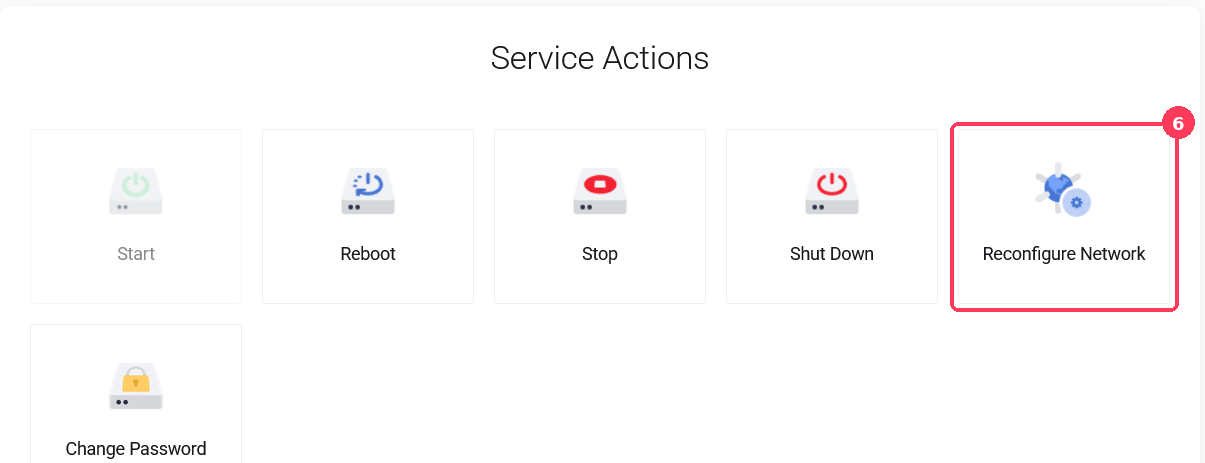
Back on your service page, click Reconfigure Network under Service Actions. This applies the new IP addresses to your server's network settings. If they still don't show up inside your operating system afterwards, use Reboot.
If the new addresses still aren't working after a reboot, please open a support ticket and we'll help.
Good to know
- New servers: if you chose extra IPs when ordering, they're added automatically while your VPS is set up. Linux servers are usually ready in about 3 minutes and Windows servers in about 10.
- Unpaid upgrade: if you already have an unpaid IP upgrade for a server, the page shows a link to that invoice. Pay it before adding more.
- Removing IP addresses: to remove addresses you no longer need, please open a support ticket.
- Limits: the page shows the maximum number of extra IPv4 addresses available for your plan. Contact us if you need more.
