



To protect our network and every customer's IP reputation, outgoing connections on port 25 are blocked by default on all VPS servers. This stops compromised servers from sending spam, which would otherwise get our IP addresses blacklisted and hurt everyone's email delivery.
This article explains what is blocked, how to send email without port 25, and how to request port 25 if your server needs it.
What is and isn't affected
- Blocked: your server connecting out to other mail servers on port 25 (delivering email directly to Gmail, Outlook and so on).
- Not affected: sending through an authenticated mail service on port 587 or 465.
- Not affected: receiving email on your server. Other mail servers can still deliver to you on port 25.
- Not affected: all other traffic (websites, SSH, databases and so on).
Option 1: Send through an email relay (recommended)
Most websites and applications don't need port 25 at all. Configure your application, control panel or mail server to send through an authenticated SMTP service on port 587 (STARTTLS) or 465 (SSL), such as:
- the SMTP server of your existing email provider (for example Google Workspace or Microsoft 365), or
- a transactional email service.
This works immediately, needs no request, and usually gives better delivery than sending directly from a new server IP.
Option 2: Request port 25
If you run your own mail server and need to deliver email directly, you can request port 25 from your client area.
Before you request
Requests are reviewed by our team. Have these in place first; servers without them are usually declined because their mail would be rejected or marked as spam anyway:
- Reverse DNS (PTR) for your server's IP, set to your mail hostname (for example
mail.example.com). You can set this under Reverse DNS (rDNS) in the Actions menu on your service page. - SPF, DKIM and DMARC records for your domain.
- A mail server that is not an open relay and only accepts mail from authenticated users.
Step 1: Open the SMTP page
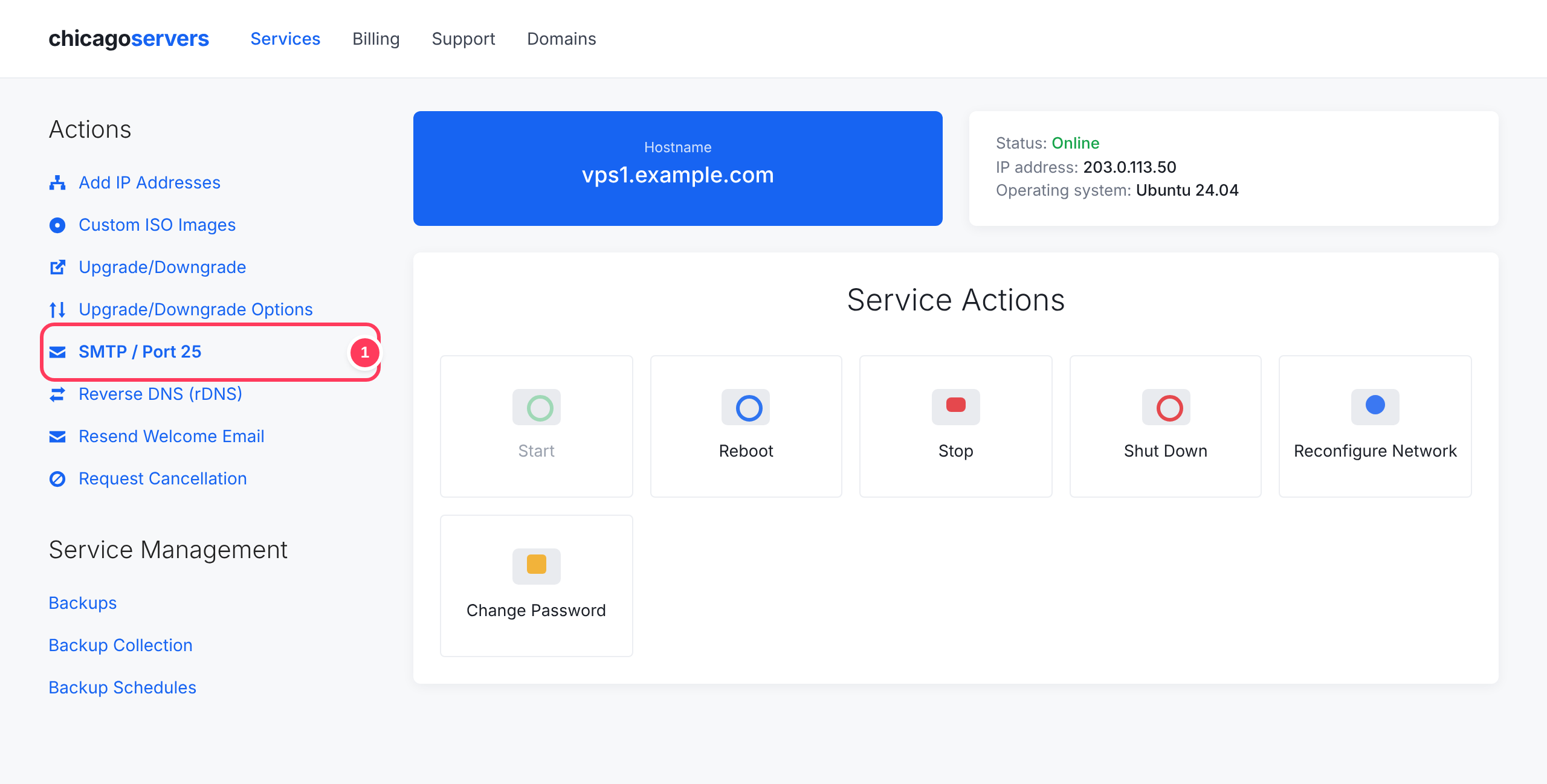
Log in to the client area, go to Services → My Services and open your VPS. In the Actions menu on the left, click SMTP / Port 25.
Step 2: Check the current status
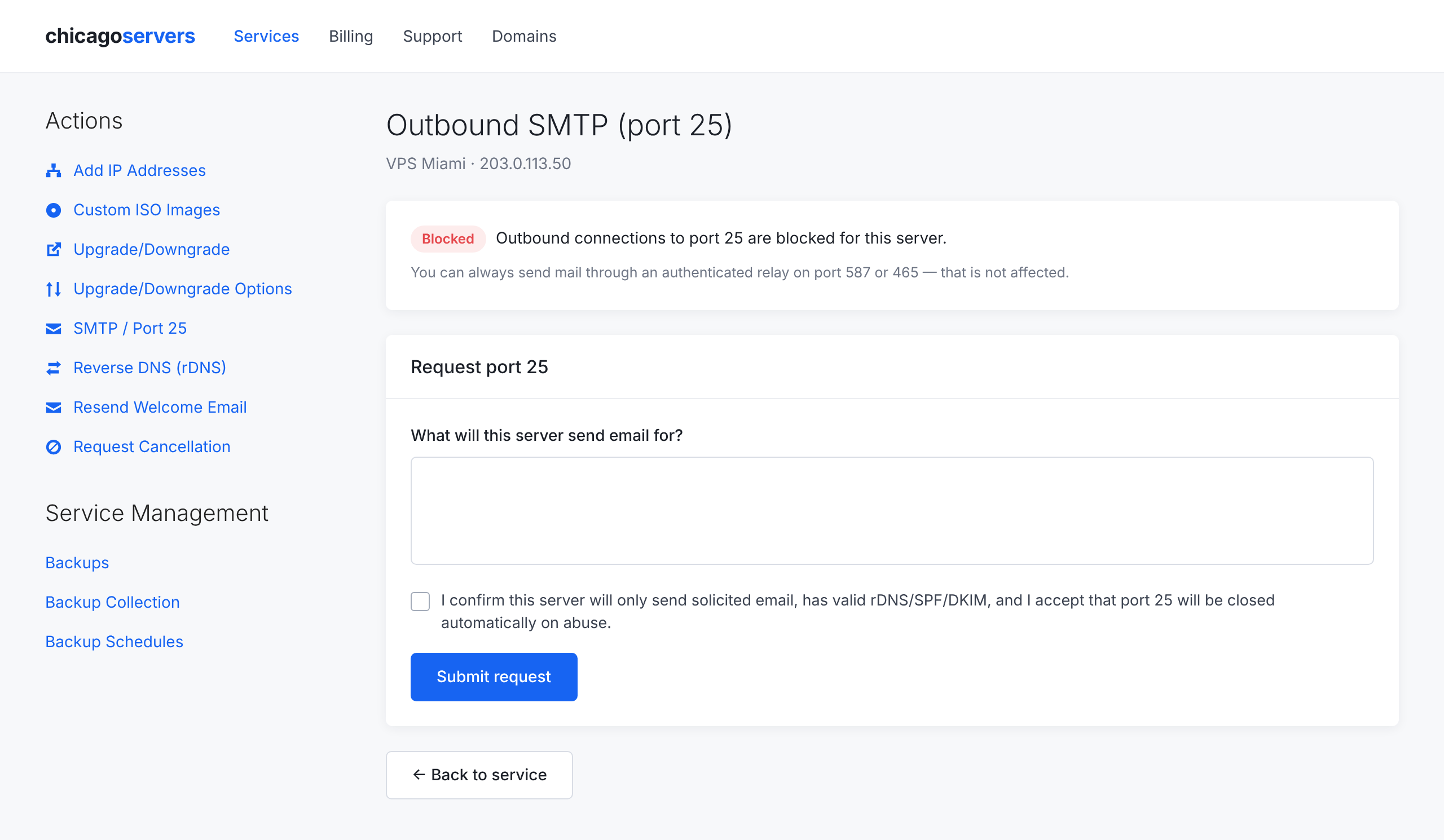
The page shows whether port 25 is Blocked or Open for this server.
Step 3: Fill in the request
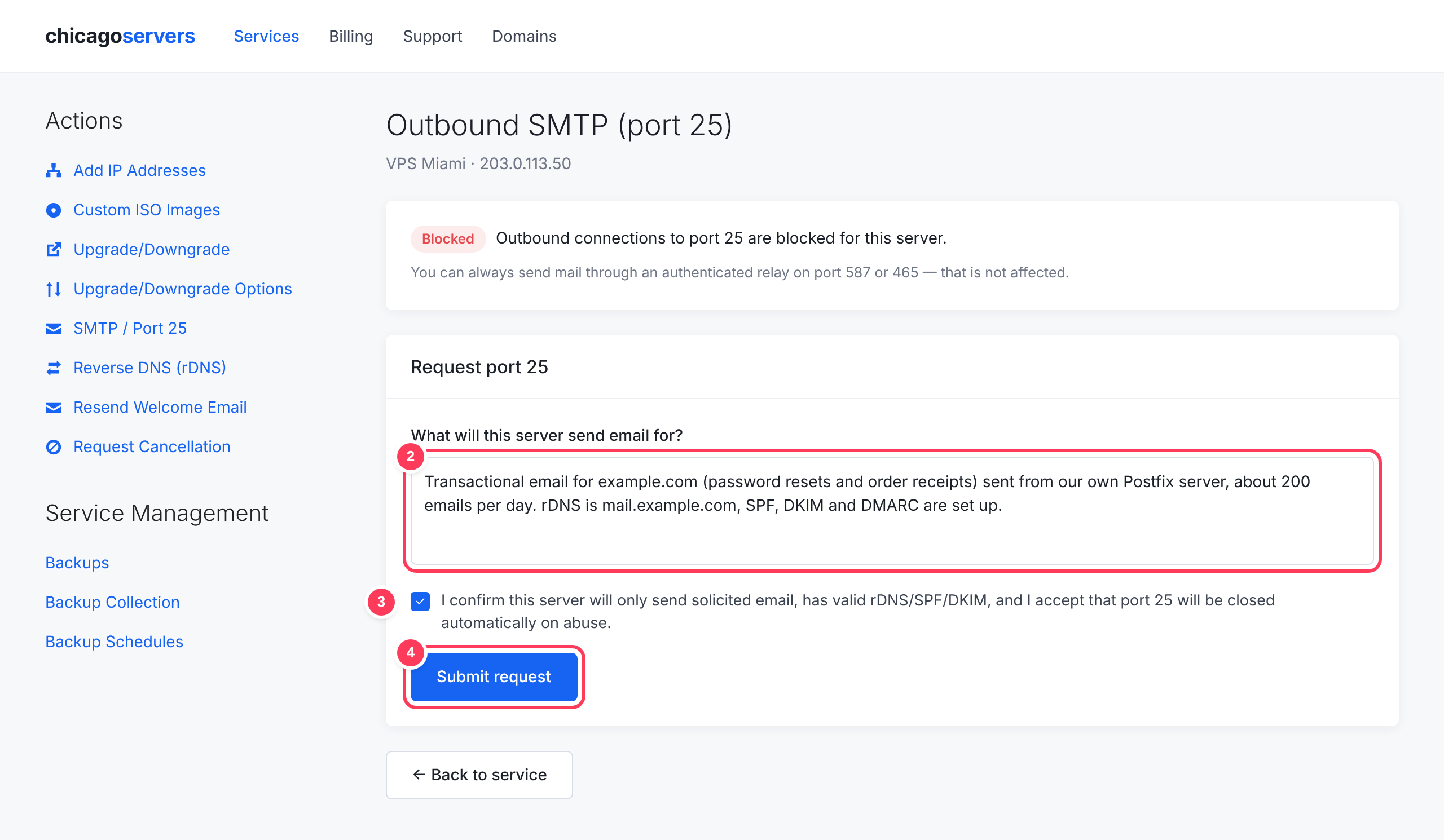
- Describe what the server will send: the type of email, which domains, roughly how many emails per day, and confirm your rDNS, SPF and DKIM are set up. Clear, specific requests are approved faster.
- Tick the box to accept the terms.
- Click Submit request.
Step 4: Wait for review
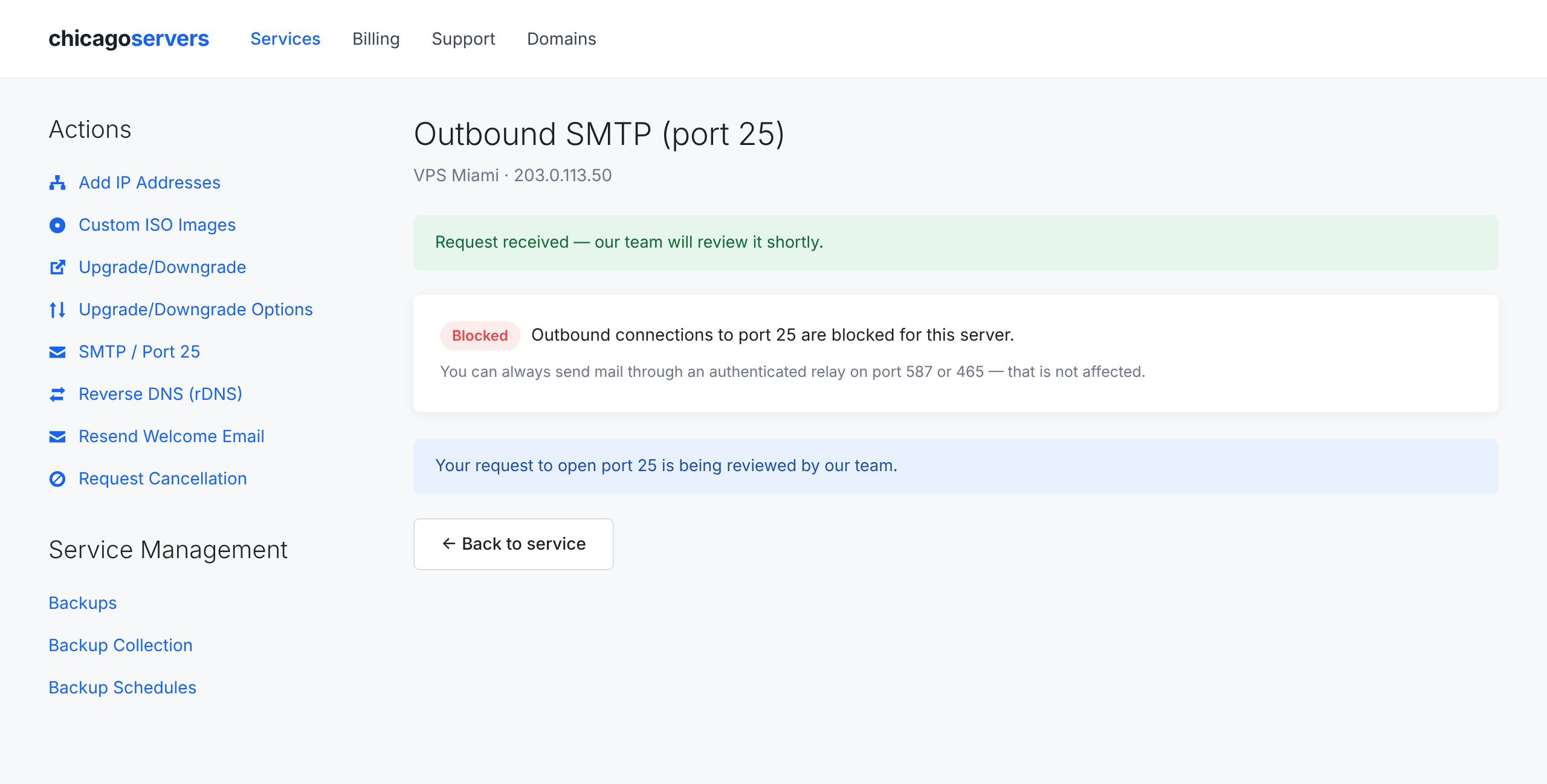
The page shows that your request is being reviewed. You'll receive an email as soon as it is approved or declined.
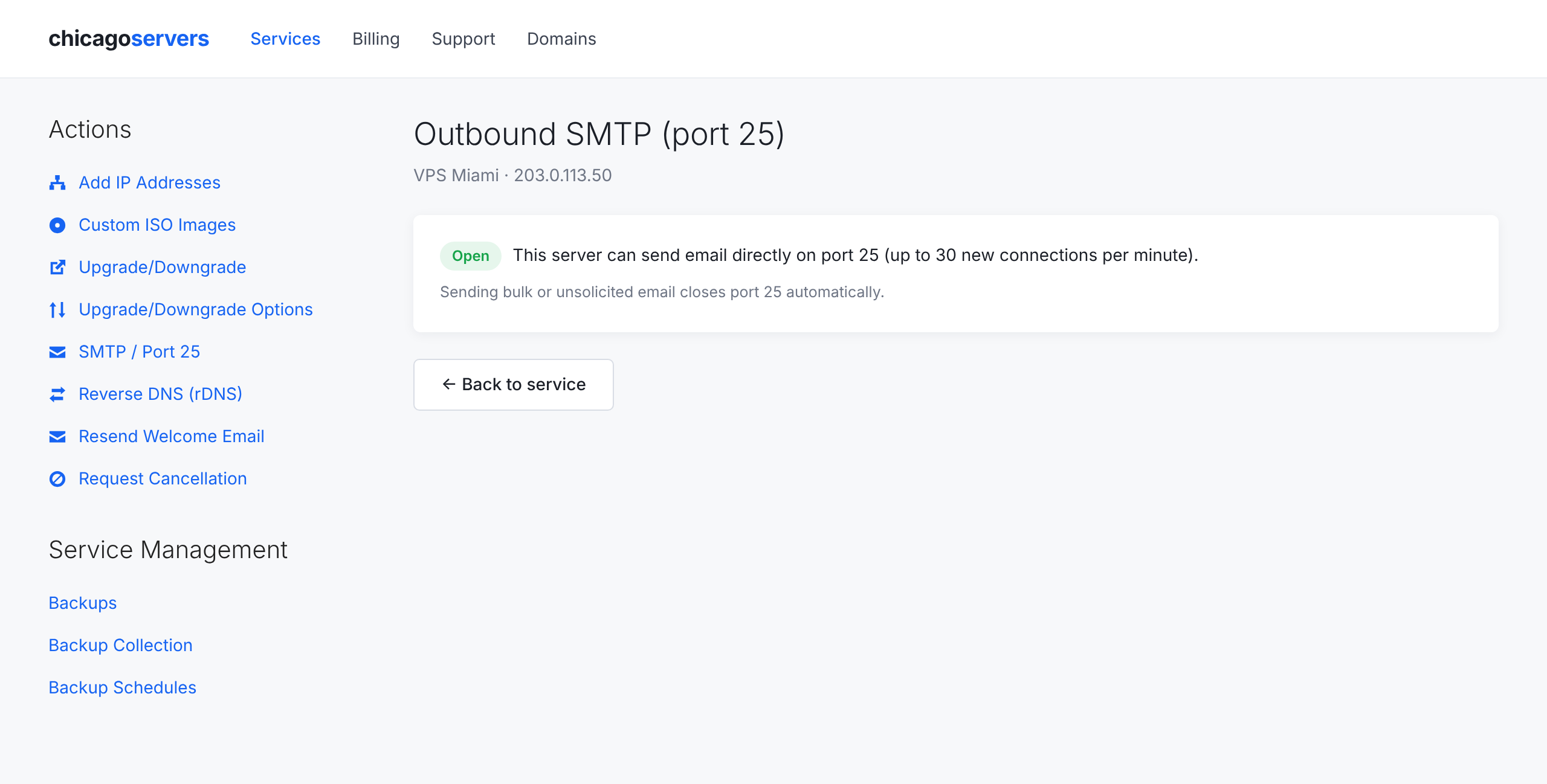
Step 5: Port 25 is open
Once approved, the status changes to Open within a few seconds; you don't need to reboot. The page also shows how many new outgoing mail connections per minute your server may make. Normal mail servers stay well below this limit.
If port 25 is closed automatically
If your server keeps sending mail faster than its limit allows, port 25 is closed automatically and you'll usually receive a support ticket about it. The SMTP page then shows this notice:
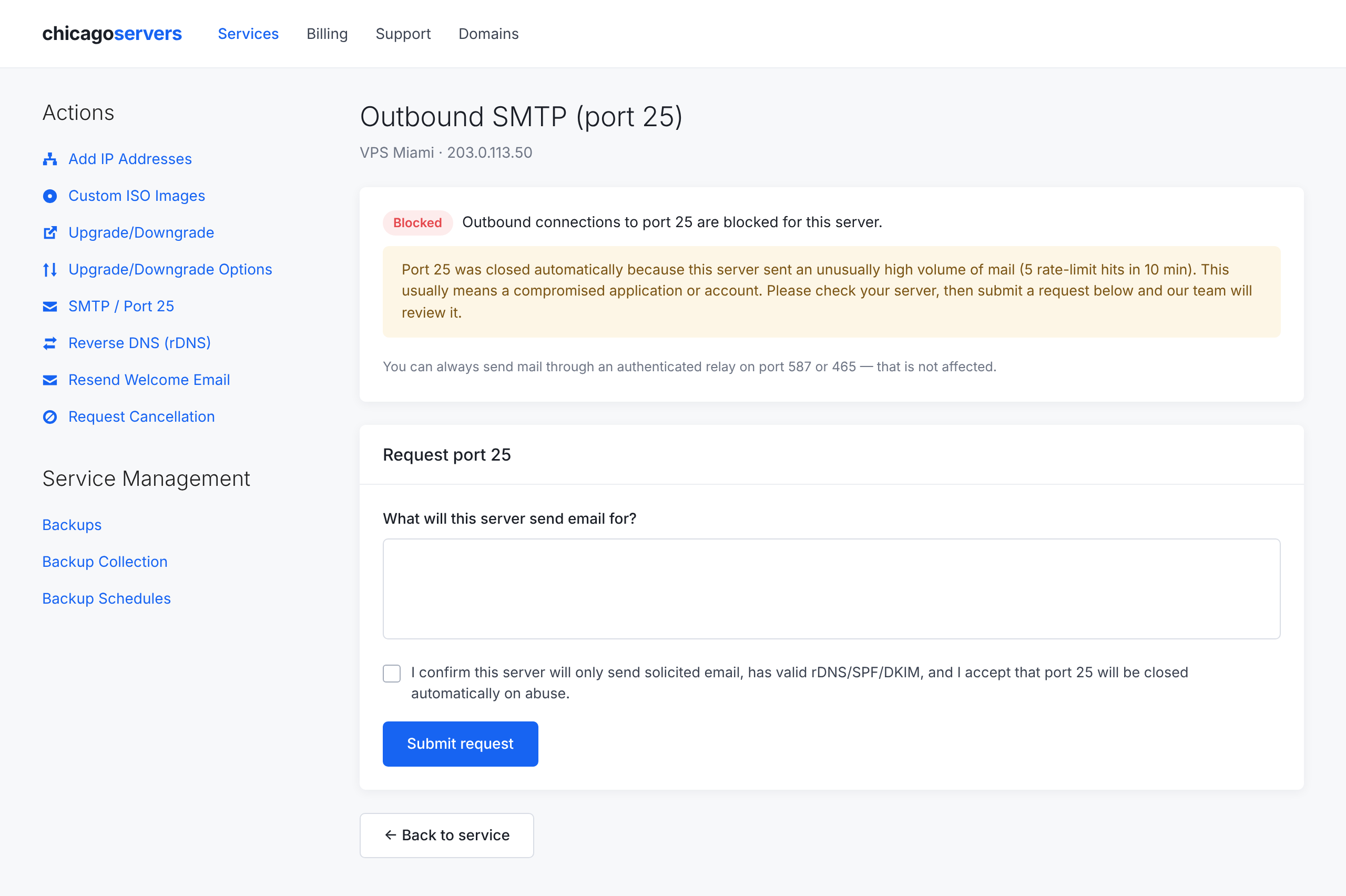
This almost always means something on the server is sending spam, such as a hacked website, a compromised email account or an infected application. Before asking for port 25 again:
- Check your mail queue and logs for messages you didn't send (for example
mailqorpostqueue -pon Postfix,exim -bpon Exim). - Clear the queue of spam, and change the passwords of any email accounts that were sending it.
- Update or remove outdated website software and plugins, and look for unfamiliar scripts.
- Reply to the support ticket, or submit a new request from the SMTP page, explaining what you found and fixed.
How to test port 25 from your server
From your server's command line, run:
nc -vz -w 10 gmail-smtp-in.l.google.com 25- "succeeded" / "open": port 25 is open.
- Times out or fails: port 25 is blocked. Use the steps above, or send through a relay on port 587 or 465.
If nc isn't installed, install the netcat package, or use telnet gmail-smtp-in.l.google.com 25.
Frequently asked questions
Will my website's contact form or WordPress emails stop working?
Only if they try to deliver email directly on port 25. Set them to use an SMTP service on port 587 or 465 (for WordPress, an SMTP plugin does this) and they'll work without any request.
Can I still receive email?
Yes. Only outgoing connections on port 25 are blocked.
Does port 25 stay open if I reinstall my server?
Normally yes. After a reinstall, check the SMTP page; if it shows Blocked, open a support ticket and we'll restore it.
Why was my request declined?
If our team added a reason, you'll find it in the decline email and on the SMTP page. The most common reasons are missing reverse DNS, SPF or DKIM, or not enough detail about what the server will send. You can fix the issue and submit a new request.
I need a higher sending limit.
Open a support ticket with details of your sending volume and our team will review it.
