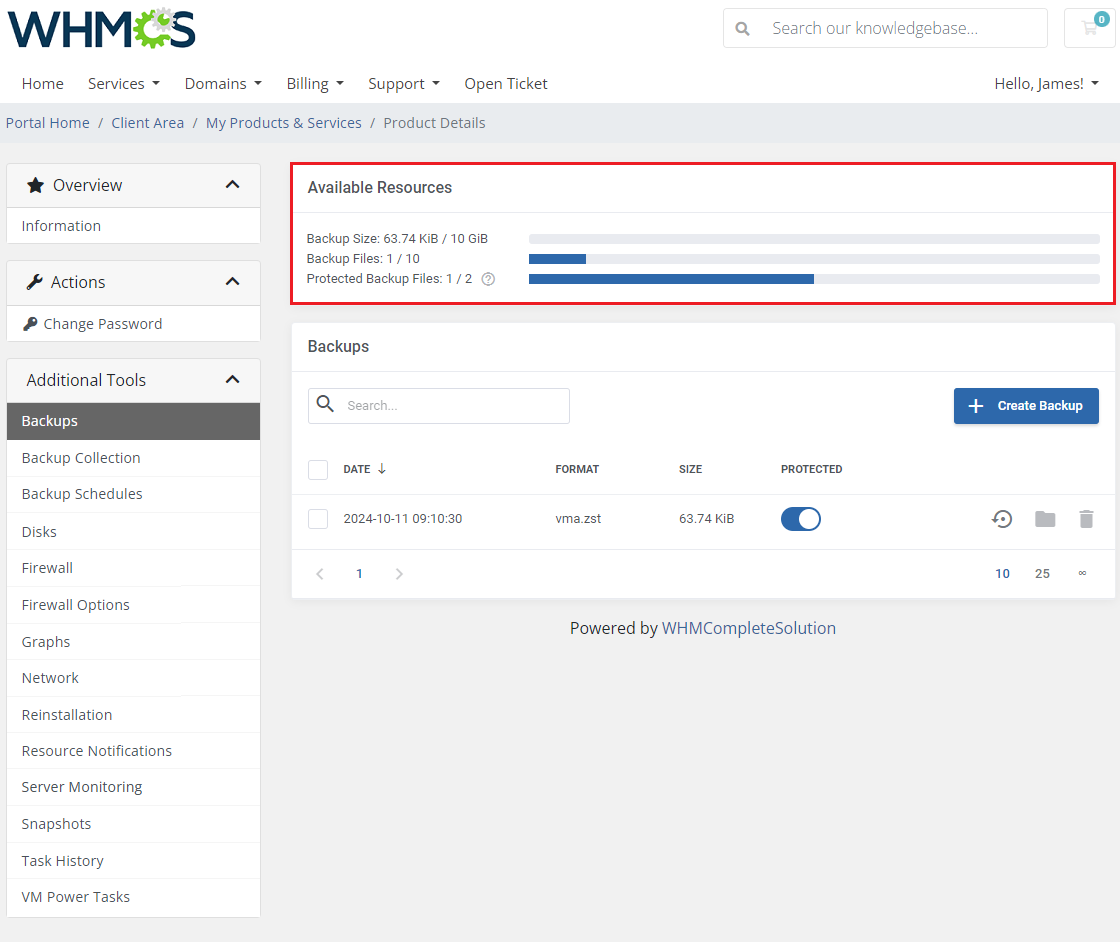



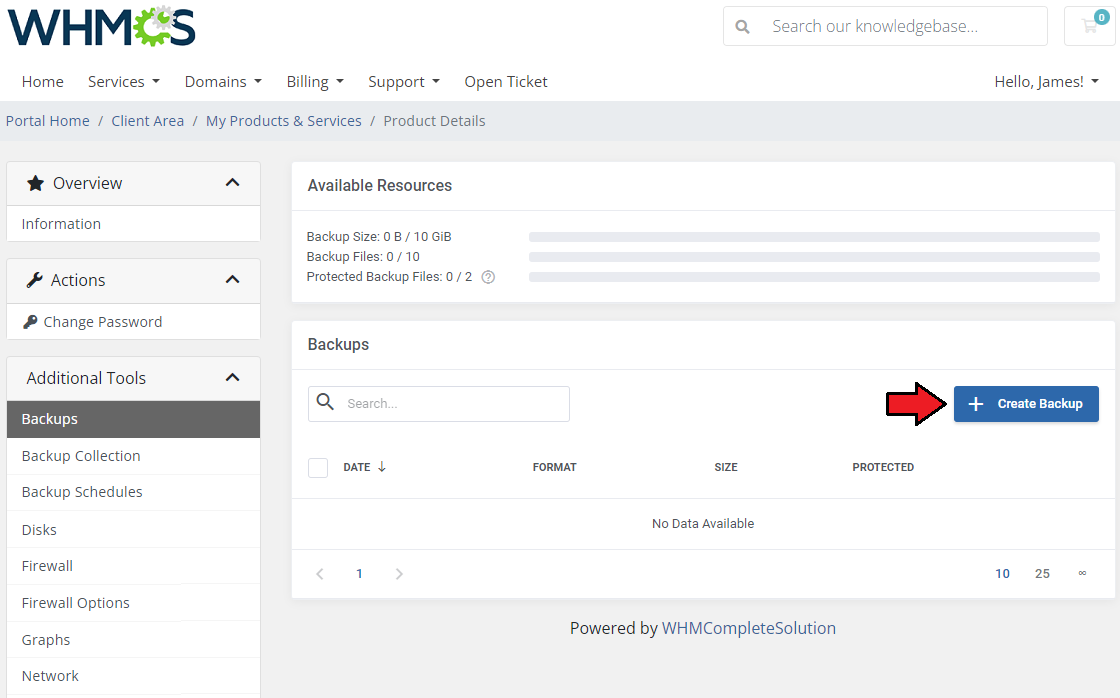
To create a single backup, press the 'Backups' button, and click on 'Create Backup' as shown on the following screen.
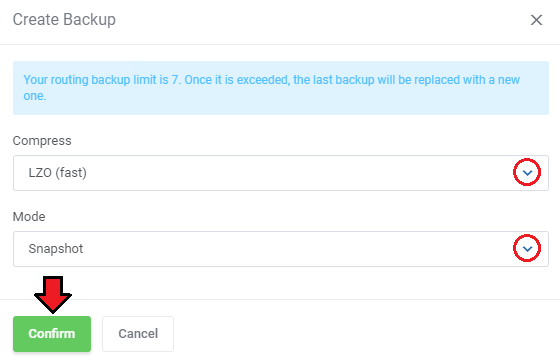
Now, choose the compression type ( 'None' , 'LZO' or 'GZIP' ) and the backup mode ( 'Snapshot' , 'Suspend' or 'Stop' ) from drop down menus.
Afterward, press 'Confirm'.
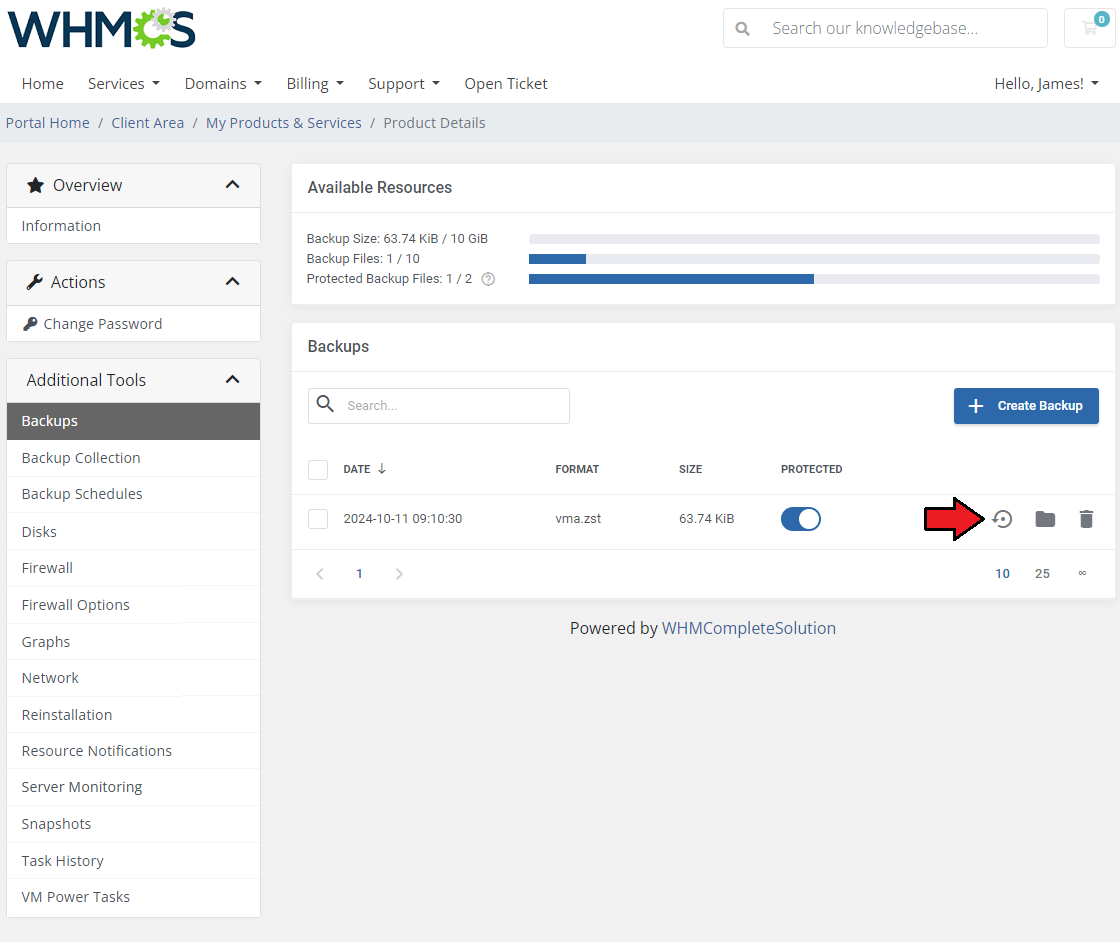
Note: Creating a backup is now added to the tasks list, wait a moment until the task is completed. Once ready, your new backup will appear on the list and will be available for future restoration.
You may mark backups as protected so they will not be unintentionally deleted.
To restore a VM from the backup, press 'Restore', and then click the 'Confirm' button in a popup window.
Above the backups list, there is a table with information on 'Available Resources'.
You will find data on limits put on backups:
- Backup Size: used/allowed
- Backup Files: used/allowed
- Protected Backup Files: used/allowed
Next to the statistics, there is a comfortable and easy-to-read progressive chart to illustrate the usage. If the size is set to 'Unlimited', the chart does not show any progress.
Once you have reached the limits, the option to create new backups is blocked.